Convert a map part
Documentation on how to import an whole map part.
Table of Contents
Process
The overall process is mostly automated. Some steps have to be done manually, especially tweaks and optimizations.
Prepare Data
Before converting the map part. The Data and files have to be prepared. Please refer to
Export Data from IV
Open Map Menu
Open the Map menu by clicking on Convert Map menu
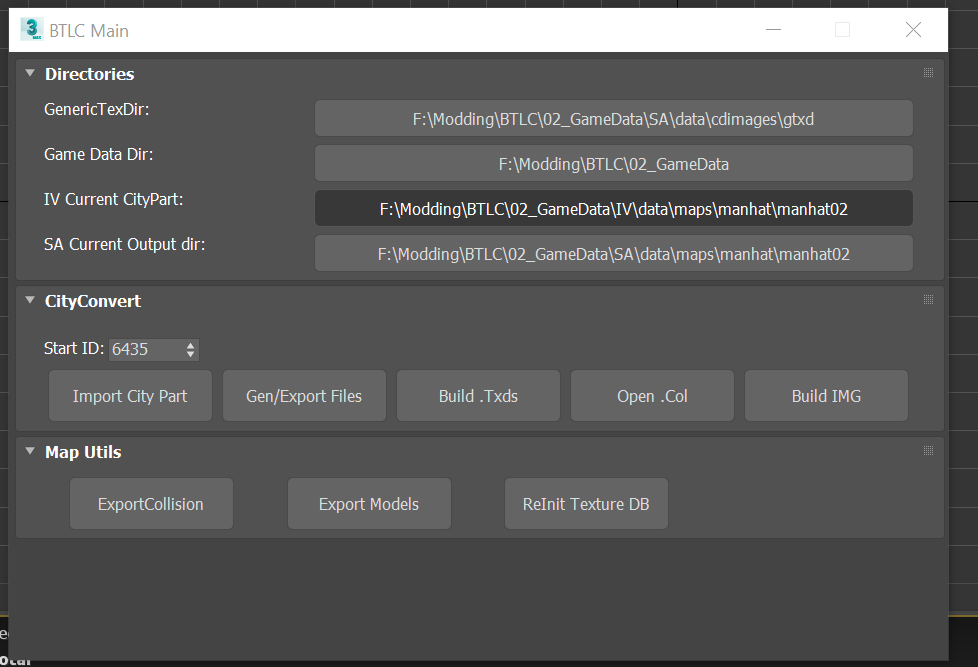
Setup Directories
Before importing the map the directories of the files have to be correctly defined:
Directory | Description |
|---|---|
GenericTexDir | Path where the alreay converted textures of gtxd are placed |
Game Data Dir | The main game data folder, which has all the exported files from OPENIV. See LINKMISSING |
IV Current City Part | … |
SA Current Output Dir | … |
If you already imported a different map part in the same 3dsmax session. Click “ReInitTextureDB“ before import!
Setup Start ID
Set the start ID to your desired ID. Be sure that the ID and the following ~500 are free unsued ID's.
Import City Part
To import the city part click on Import City Part
Depending on the size of the city part, the import process can take up to 20 minutes.
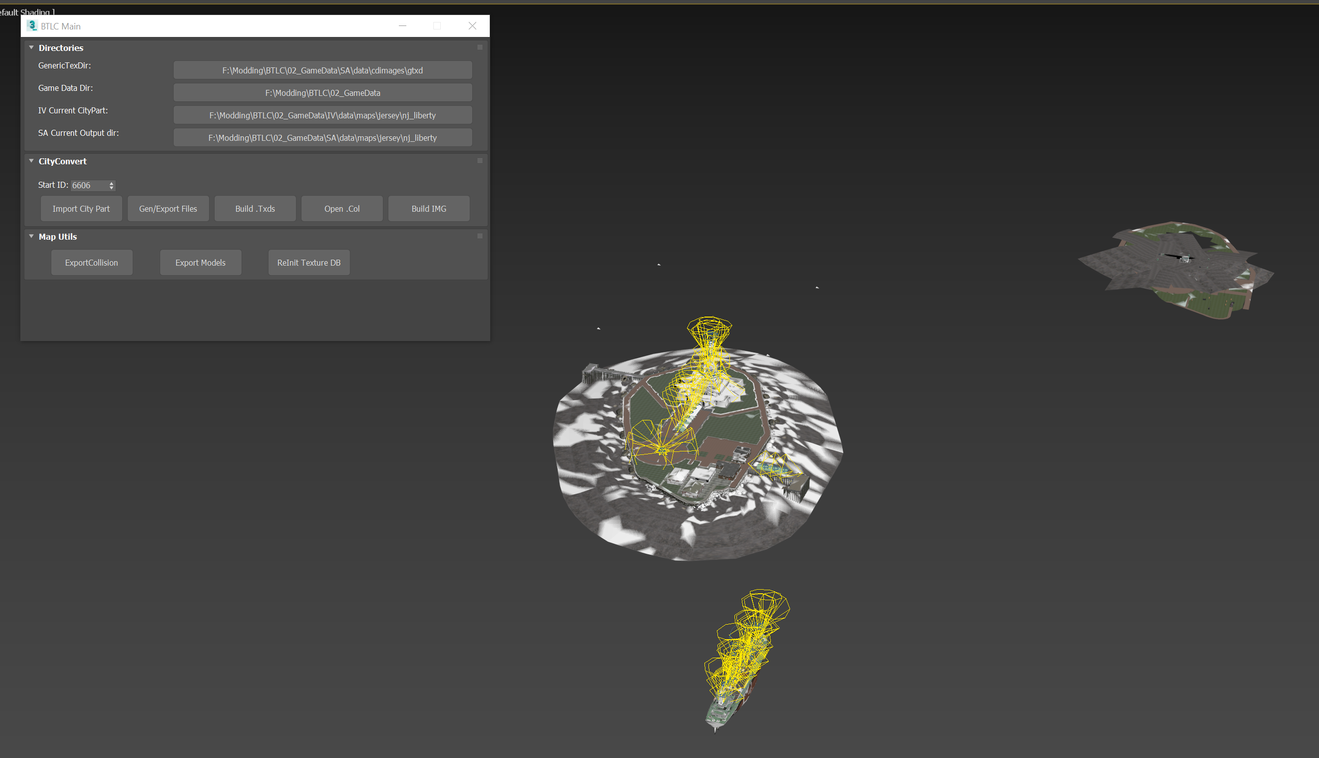
After Import you’ll see the map placed with already generetd collision models, as children of every object. Lights are also visible. Also all LOD models are placed.
In the Sidebar menu you can choose to only show models / collisions or all
Manual map optimizations
Some little bugs can be present. Thats why a manual optimization is needed.
Light painting
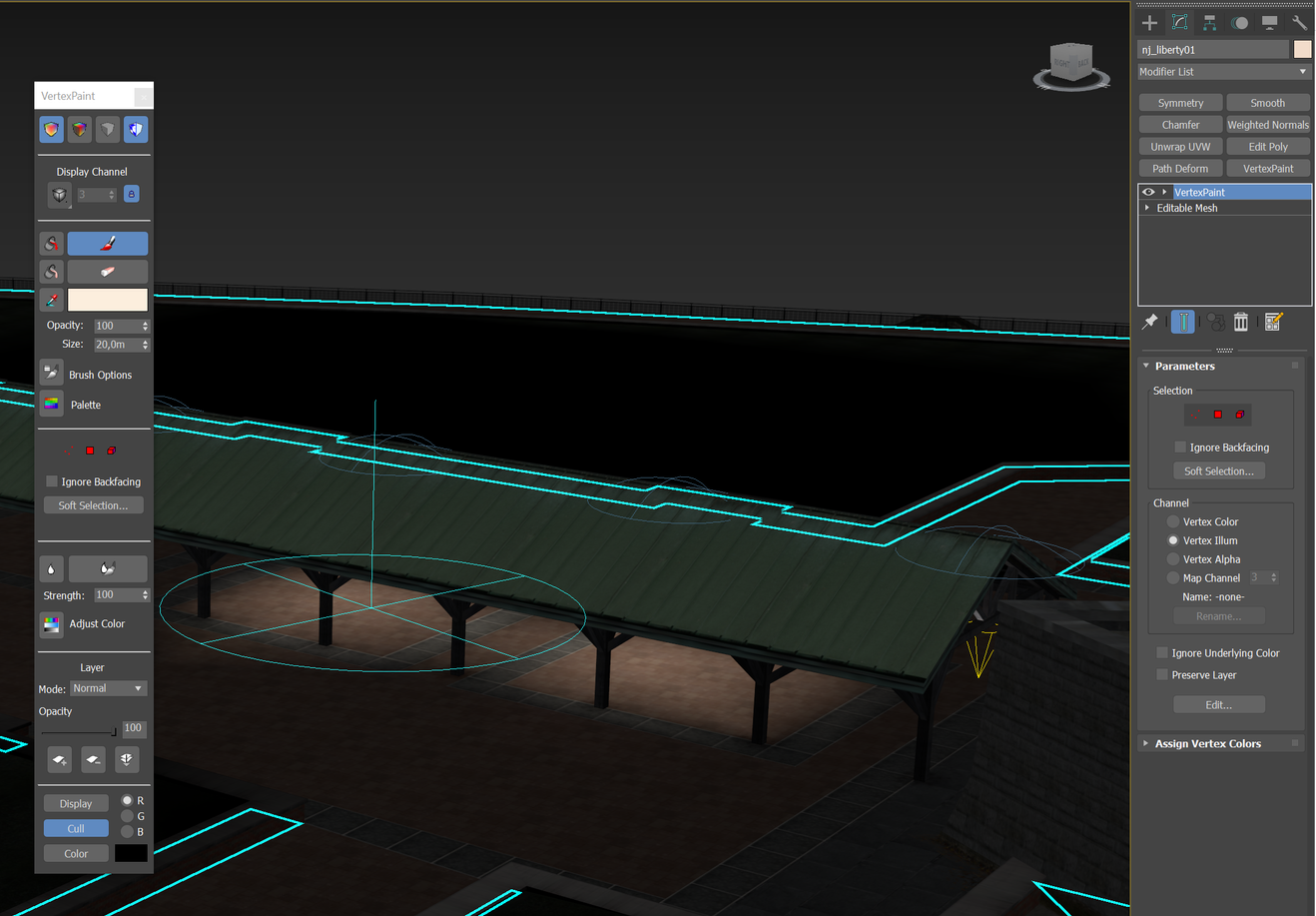
Sometimes certain areas which should be illuminated aren’t. Here artistic freedom can be used to paint lights with vertex paint.
Don’t overdo it and only apply light paint for static light sources!
Improving collision
The automatic collision generation tries to build optimizated collisions for the models. Rarely it however can happen, that the generator doesn't catch a collision bug.
Please check the collisions visually. Also check the collision later ingame if any invisble walls or collisions bugs occur. If this is the case, just edit/optimize the collision model and re-export the collisions by pressing Export Collision in the Map Utils.
After re-exporting collisions. Open the Col File with ColEditor2 and save, to build the FaceGroups.
Generate / Export Files
By clicking on Gen/Export Files Models and Collision will be exported. During export 3dsmax will be unresponsive, this is normal behavior.
Build Texture archives
Build Collisions